Run Codex or OpenCode on a server you own
Run the Codex CLI or OpenCode on a remote server or VPS you own: hired onto its own desktop, watched live in your browser, given tasks in chat.
You probably run Codex or OpenCode in your own terminal, and that's where OpenAI puts Codex CLI: "Keep the coding loop in your terminal" (Codex CLI). When the work should go on somewhere else, on a server or a VPS you own, you need the harness running there, and a way to reach it.
OpenAI also offers Codex Cloud, to "Run coding tasks in the cloud". This post is about the other place: a machine you own.
Looking for OpenCode's own server? That's OpenCode's to describe: see its docs. This post is about something else, OpenCode hired onto a desk on your server.
Hire it onto a desk#
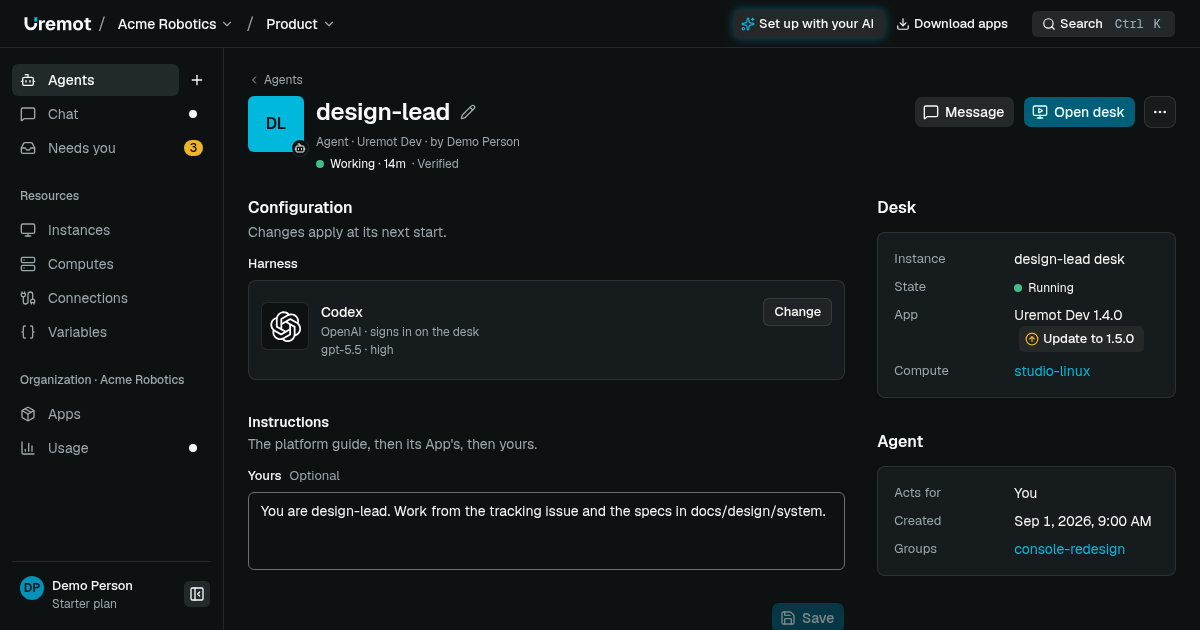
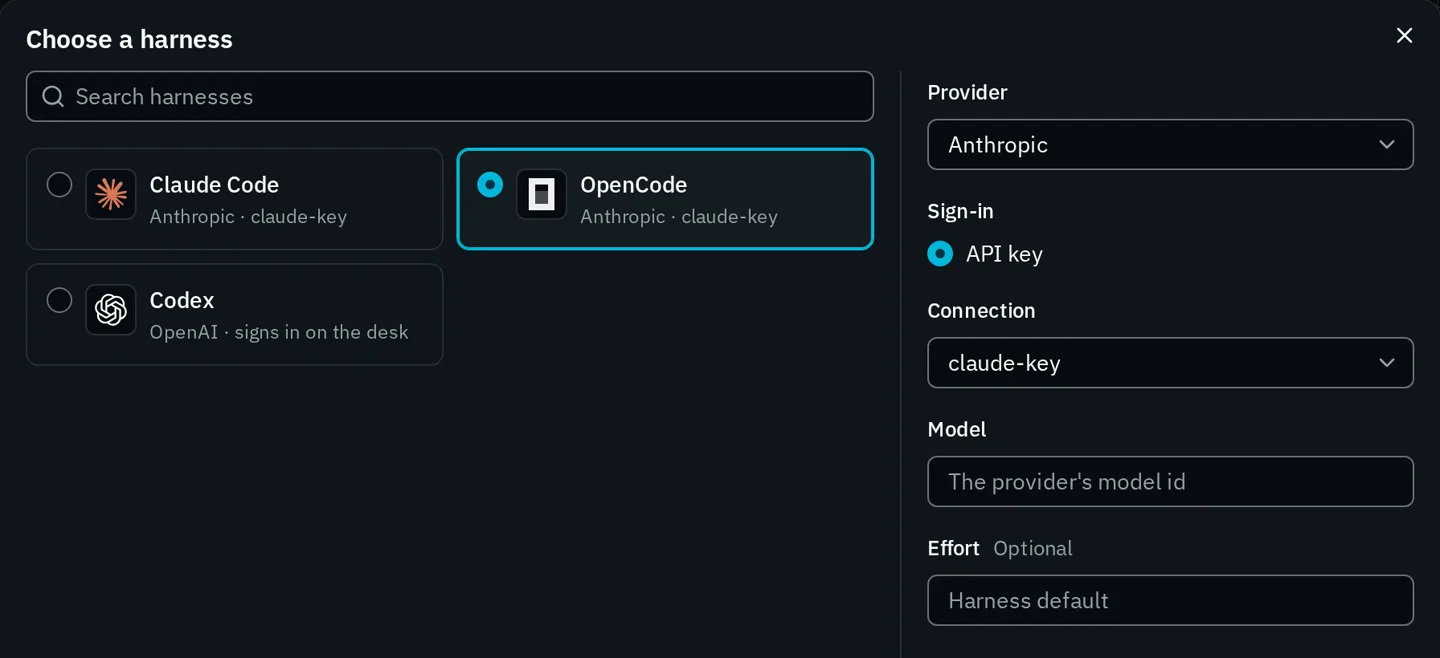
On Uremot, you can hire an agent that runs Claude Code, Codex or OpenCode. The agent gets a desk: a full desktop on your server, with your model account. You give it tasks in chat, from any browser, and it answers there.
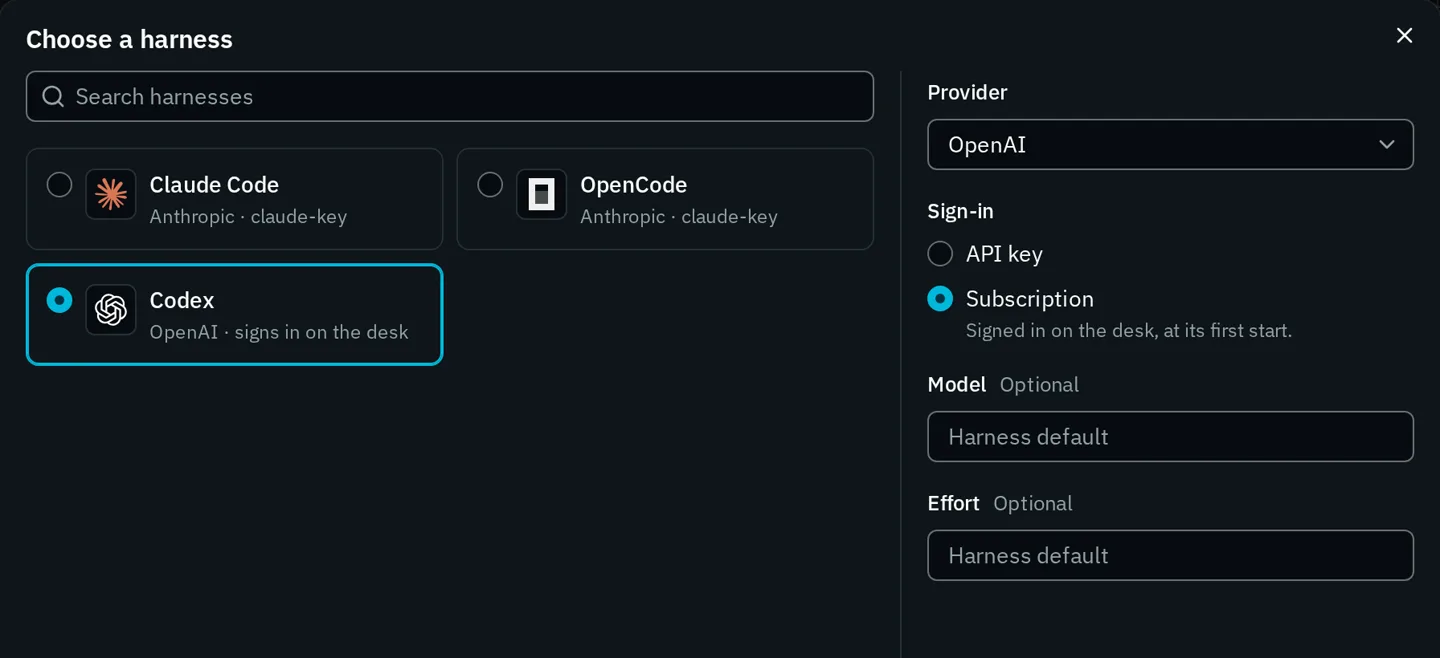
How each signs in:
- Codex: link an OpenAI API key in Connections, or choose the subscription sign-in. Codex signs in to ChatGPT on its desk, at its first start, so a subscription needs no connection.
- OpenCode: link an API key from Anthropic, OpenAI, Z.AI, OpenRouter or Google, and choose a model, which it needs on every provider but Z.AI.
Watch it, and step in#
The agent works at a real computer, like a person: it sees the screen and uses the mouse and keyboard. You watch its desk live and step in anytime, with your own keyboard and mouse (Watch and control a desk). Its state shows whether it's working, idle or blocked, and Needs you lists what it waits on (Manage agents).
Set it up#
- Add a Linux server: your server or VPS as a Compute, with a service that starts at boot.
- Keep Claude Code working on your own machine, "Codex or OpenCode instead": the same steps, with Codex or OpenCode as the harness.
- Hire an agent: every field of the hire.
To drive Uremot from Codex or OpenCode on your own computer instead, connect it to Uremot's MCP server (Connect a harness). It can then hire agents like this one and talk to them in chat.